
1. Wi-Fi Setup
Use the supplied USB cable to connect the AQ1w monitor to your computer. Plug the USB micro end into the slot in the AQ1w monitor and the USB-A end to your computer.
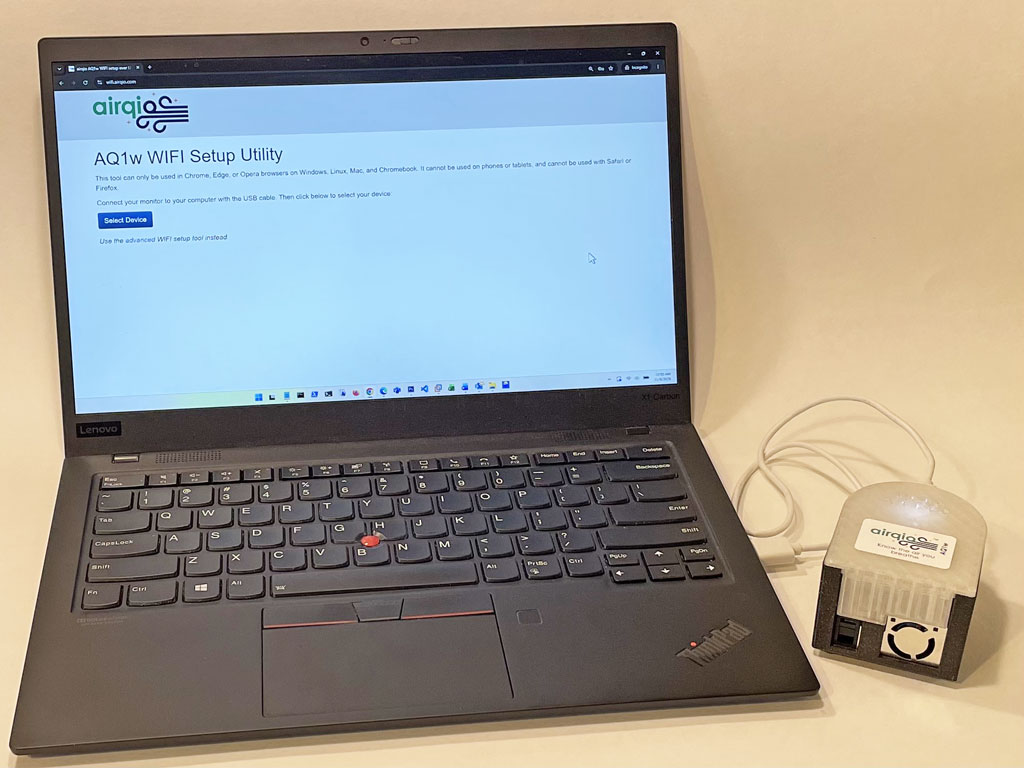
On your computer, open the Wi-Fi setup program at https://wifi.airqio.com and follow the instructions there to get your AQ1w connected to your home Wi-Fi.
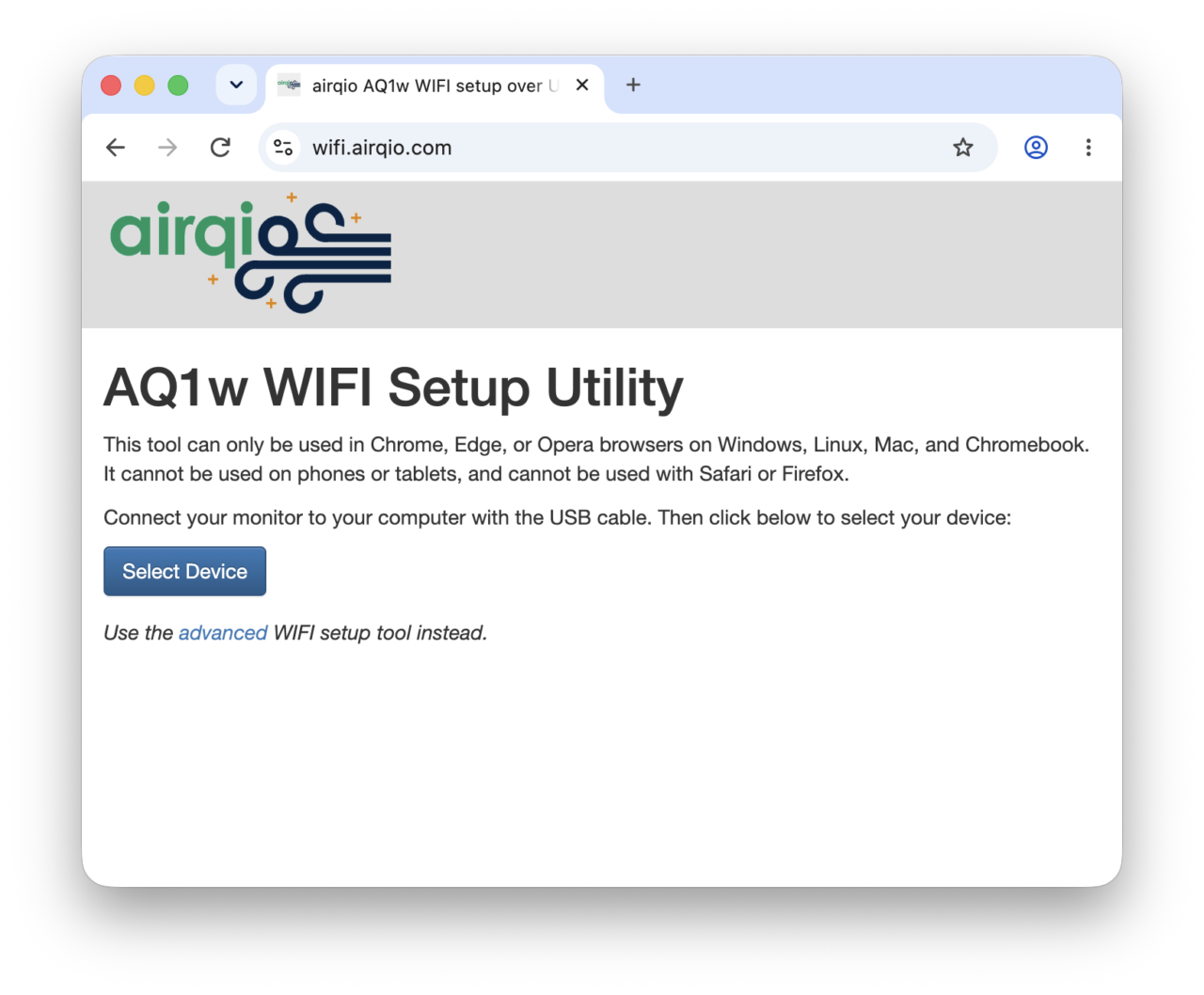
Select your device and wait for it to return a list of Wi-Fi networks. Then choose your network, enter the password and choose to configure device.
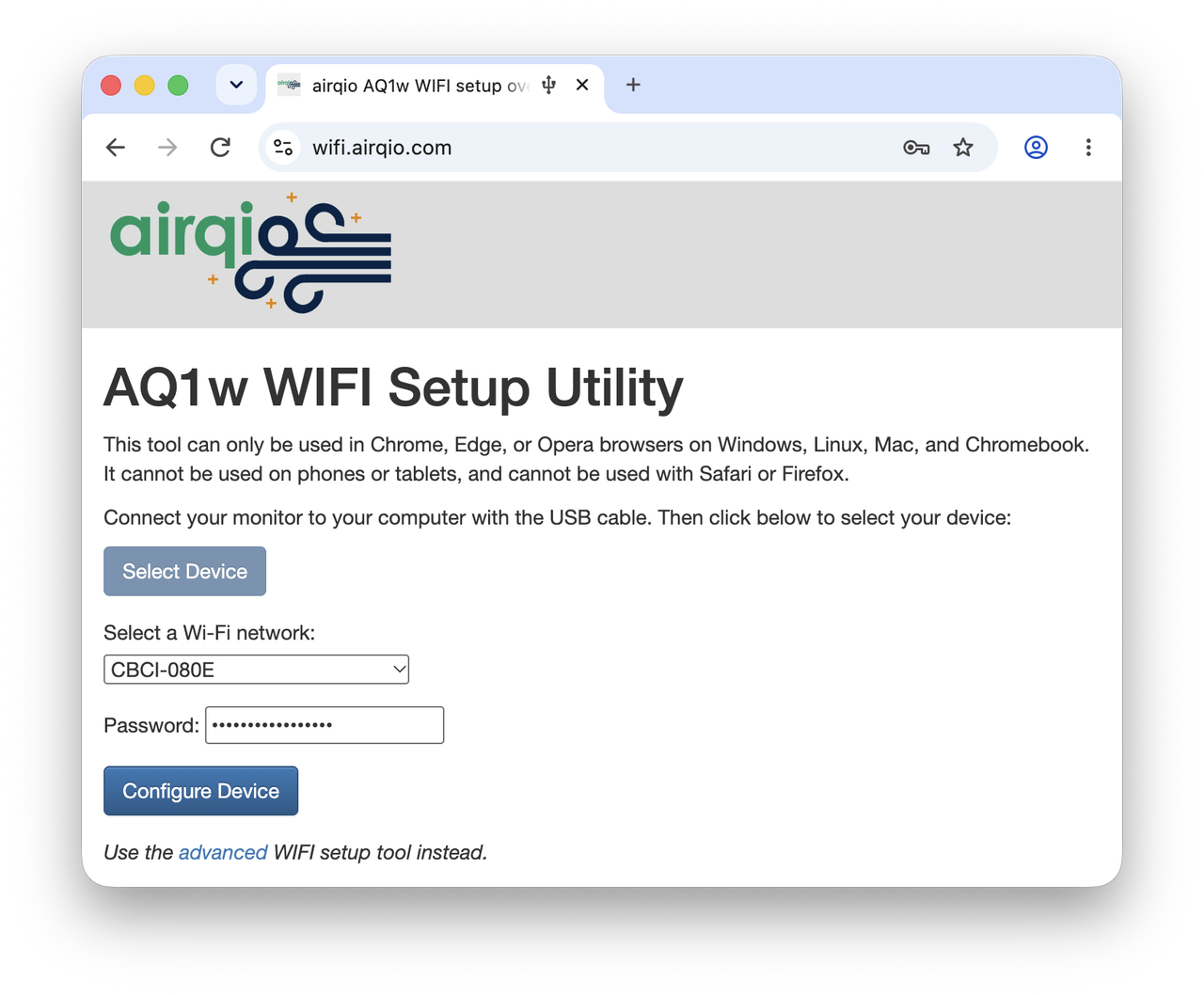
Once you have completed Wi-Fi setup, disconnect the monitor from your computer.
2. Placing Your Monitor
Next, choose a location for your monitor. Typically, this is a space where you or your family spend the majority of your waking time or where you suspect bad air quality. Be sure to follow these guidelines:
- Do not choose a location that receives direct sunlight. Sunlight heats the monitor and causes errors in the metric measurements.
- Keep the monitor off the floor by at least two feet. A location near the floor provides high particulate matter readings from normal foot traffic.
- If placed in a kitchen, keep the monitor at least 10 feet from a range or cooking surface. Close proximity to cooking can show very elevated measurements and there is a splash hazard risk.
- Make sure there is nothing obstructing the front of the monitor, so it has easy access to “breathe” air from your chosen space.
3. Powering and Startup
Use the supplied power adapter and USB cable to power your monitor and ensure reliable operation. If there is not a power outlet within reach of your desired location, consider choosing a different space.
When the monitor is first powered, the color RGB LED breathes white for a few minutes while the sensors warm. Then the RGB LED shows the air quality index category.
The blue status LED helps you know that your monitor is connected to the internet and functioning to specification.
Read the full description for the LED indicators in the User’s Guide.
4. Get the App
After connecting your monitor to Wi-Fi (and provisioning if Commercial mode), use the info below to install the airqio™ App on your mobile phone.
Android
Tap the button below to install the current version of the Android airqio™ app.

Apple iPhone / iPad
Tap the button below to install the current version of the iOS airqio™ app.

Reviewing the User’s Guide
The User’s Guide has additional detail for operating the monitor, descriptions of the measurement metrics, and troubleshooting information.